
How to Adjust Subtitle Start and End Time in Sublandia Editor
Designed for creators. Free to use. Ready to scale.
Built by subtitlers. Powered by freedom!
Introduction
Subtitle timing in Sublandia Editor can be adjusted visually on the waveform or manually through timing controls. This allows precise subtitle synchronization and frame-accurate start and end time editing.
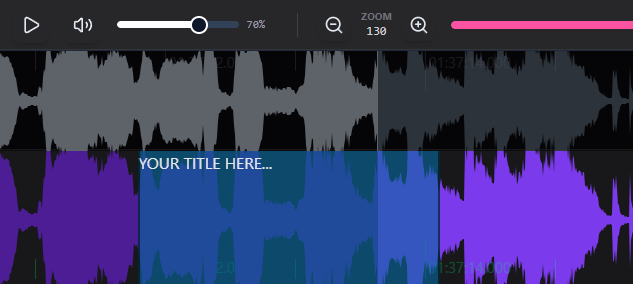
 Steps to Edit Subtitle Timing
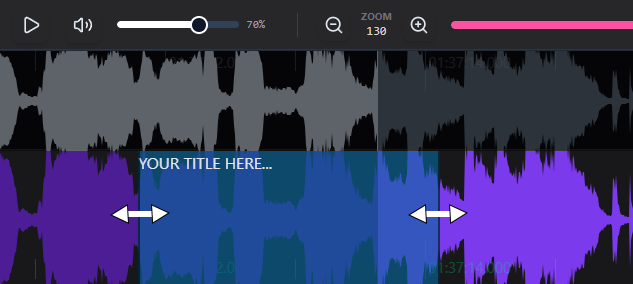
1. Adjust Timing Directly on the Waveform
Move the mouse over the subtitle edge that marks the start or end point. Drag left or right to adjust subtitle timing visually.
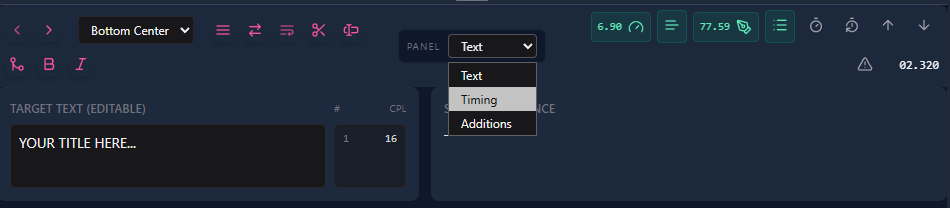
2. Open the Timing Panel
Select the subtitle line and choose Timing in the panel above the text editor.
3. Edit Start and End Time Manually
Change subtitle timing by entering values in the time fields. For precise frame adjustment, use +f and -f to move subtitle timing exactly one frame forward or backward.

Tip
Use keyboard shortcuts for faster subtitle timing adjustments and more efficient subtitle editing.

 FAQ
FAQ
How do I change subtitle timing in Sublandia Editor?
Subtitle timing can be changed by dragging subtitle edges on the waveform or by entering precise time values in the Timing panel.
Can I adjust subtitle start and end time frame by frame?
Yes. Select Timing in Panel above the text editor and use +f and -f to move subtitle timing exactly one frame forward or backward for frame-accurate subtitle editing.
Is waveform timing more accurate than manual timing input?
Waveform timing is faster for visual synchronization, while manual timing input provides exact numerical control.
Can I edit subtitle timing after subtitles are already created?
Yes. Subtitle timing can be changed at any stage of the project.
What is the best method for professional subtitle timing?
Professional workflows usually combine waveform editing with frame-by-frame fine adjustment.
Does Sublandia Editor support frame-accurate subtitle timing?
Yes. Sublandia Editor supports precise frame-based subtitle timing adjustments.
Why is subtitle timing important in subtitle editing?
Accurate timing ensures subtitles match speech naturally and remain readable.
Something on your mind?
Contact us
We are social


